
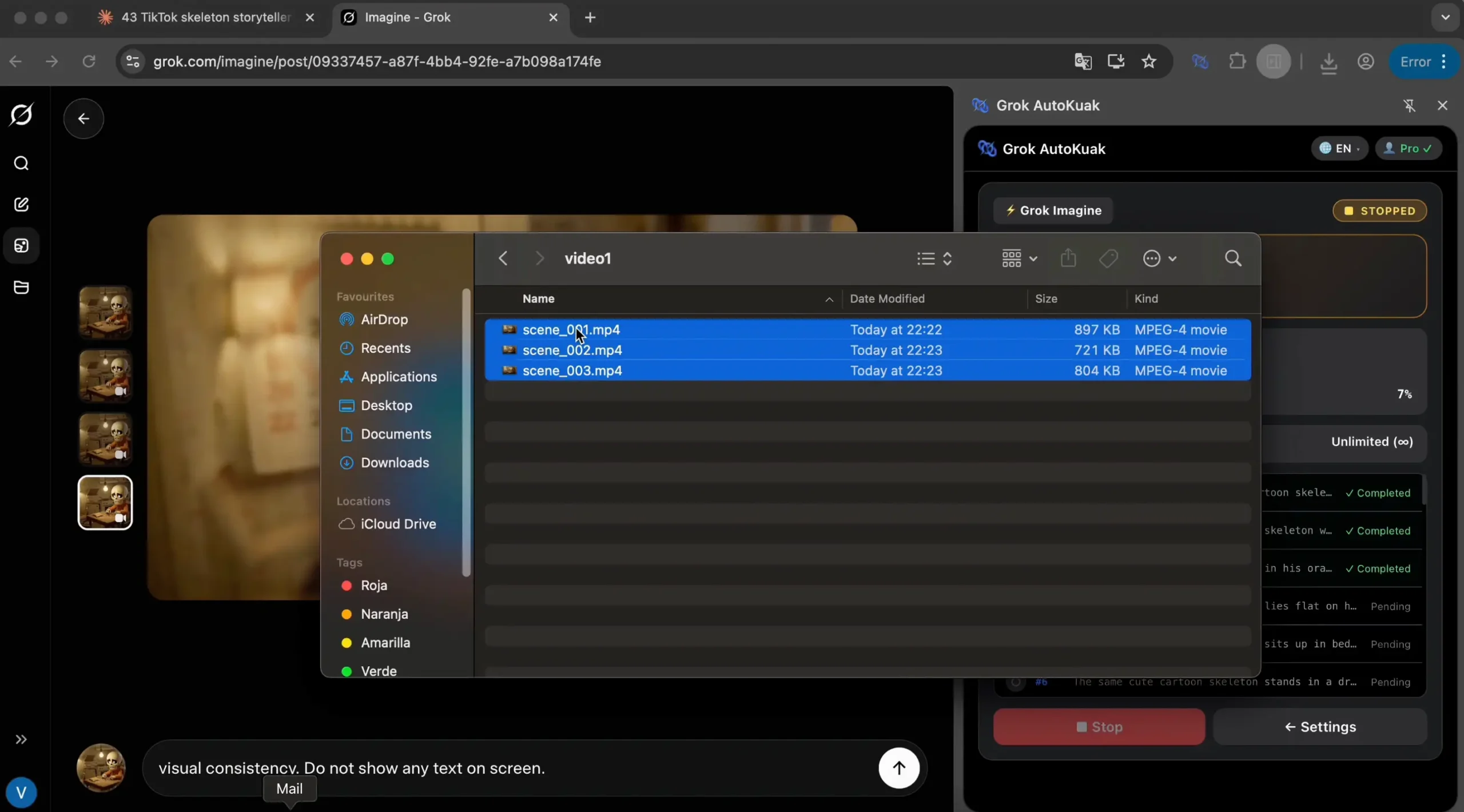
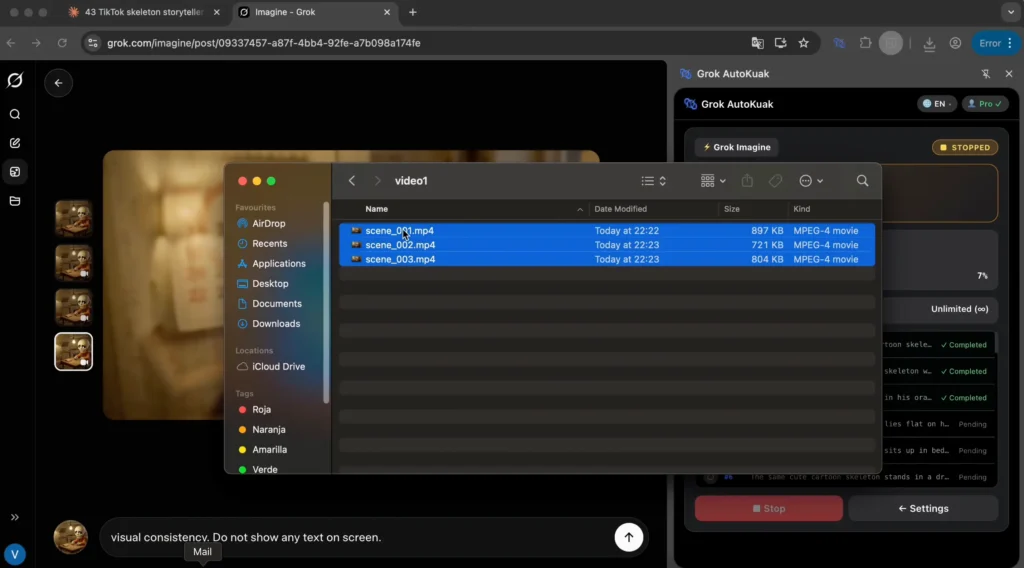
Generating 50 videos with Grok takes one afternoon. Downloading them manually takes another. Each post opened, each Download button clicked, each file renamed and dragged into the right folder. This guide walks through how to automate the download side and stop managing files one by one.
Key takeaways
- The AutoKuak Suite Downloads module pulls Grok videos in batch with auto-rename, no scripts, no APIs.
- Downloads happen inline during each batch: every output saves to disk as it’s generated.
- Free plan: 30 items per run with unlimited runs. Pro lifts the per-run cap.
- Configurable delay + Stop at any time keep large batches predictable.
Why manual downloads are the real bottleneck
The intuitive read is that generation is the slow part. The reality is that, once your prompts are queued, Grok generates while you scroll Twitter. The tedious work starts after: open every post, check the video finished processing, click Download, rename the file, move it to the project folder, repeat.
Run the math. A 30-video batch downloaded by hand, at a reasonable 40 seconds per file (open, wait, download, rename), is 20 minutes of mechanical clicking. Multiply by a real production week and that’s 2 hours per week of zero-leverage work. For a creator who has automated everything else (idea, script, generation), downloading manually is the last unnecessary friction.
Automating downloads is conceptually old hat. What changes is doing it on Grok’s actual UI, with no external scripts, no APIs, and no glue code between tools. A Chrome extension that already runs in your browser can orchestrate the process if it’s built around the selectors Grok currently exposes.
What you need to download Grok videos automatically
- An open Grok tab.Specifically grok.com/imagine or an x.com conversation where the files have already been generated. The module reads the live DOM, not a private API.
- A running Grok AutoKuak batch.Downloads happen inline as part of a batch — each prompt’s output is saved to disk before the extension moves to the next prompt. Pick a timer that gives Grok enough room to finish rendering before the next send.
- The AutoKuak Suite extension.The Downloads module ships in both Free and Pro plans. Free: up to 30 items per run, unlimited runs. Pro: unlimited prompts on Pro with no per-run cap.
- A destination folder and a naming scheme.Decide upfront where files go and how you want them named. The extension respects your default Chrome Downloads folder and applies the numbering pattern you configure.
You don’t need to know how to code, install Python, or configure Selenium. If you’re already familiar with how to automate Grok for batch prompt sending — covered in the step-by-step Grok AutoKuak guide — the Downloads module is the symmetric piece of the workflow: what Grok AutoKuak sends, Downloads picks up.
How downloads work: inline during each batch
The Downloads logic isn’t a separate “run downloads later” step — it’s woven into the batch itself. As soon as Grok finishes generating a video for a given prompt, the extension saves that file to disk with the configured delay and your renaming pattern, then moves to the next prompt. By the time the batch ends, every output is already on disk.
- Inline saves per prompt.No “phase 1: send / phase 2: download” — both happen in the same flow.
- Configurable delay between downloads (recommended 3 seconds) to avoid browser throttling.
- Auto-rename with prefix + sequential number, or numbers only, applied as each file lands.
- Custom subfolder inside your Chrome Downloads folder so each batch stays organized.
This is what makes the workflow feel automated: you launch the batch, walk away, and come back to a folder full of correctly numbered files. No second pass, no extra clicks per video.
Step-by-step Downloads setup
Step 1 — Install Grok AutoKuak
Add the extension to Chrome from the Chrome Web Store. Install takes under 30 seconds. The Free plan unlocks Downloads with no card and no signup wall.
Step 2 — Pick your folder and naming scheme before touching anything
Be specific here. If every video lands as video.mp4, video (1).mp4, video (2).mp4, you’ll spend more time organizing afterward than you would have spent downloading by hand. Decide a scheme upfront:
- Prefix + number: ideal for numbered series. Prefix
storyboard_yieldsstoryboard_001.mp4,storyboard_002.mp4, etc. - Numbers only: for fast workflows where the order is everything and the source name is irrelevant. Yields
001.mp4,002.mp4, …
Set the destination folder inside Chrome’s Downloads folder. The extension can’t write outside of it because Manifest V3’s downloads permission scopes where it can operate. If you need finer organization, run a 3-line shell script after the batch finishes — that’s what most production workflows do anyway.
Step 3 — Pick the prompt range
From the Downloads panel inside the extension, define which prompt to start from and which to end on. Each prompt in range will be sent, generated, and its output saved to disk inline before moving to the next.
Step 4 — Configure the delay between downloads
Chrome supports parallel downloads, but both the browser and Grok’s CDN can throw 503 if you abuse it. A delay of 5 seconds is the safe floor (it’s the extension’s minimum preset, and one of the available values alongside 10, 20, 30 and 60). For long batches with 100+ files, the higher presets give extra headroom against temporary rate limits.
Step 5 — Launch and let it run
Hit “Start”. The progress widget shows how many files are done, which one is downloading now, and how many remain. The tab must stay open — the module operates on the live DOM. If you need to abort, hit Stop: outputs already saved to disk are kept, only the in-flight prompt is cut.
Ready to automate your next Grok download batch?Free plan, no card, install in 30s.
Common mistakes (and how to dodge them upfront)
- Setting the timer too low for the model.If Grok needs 40 seconds to render a long video and your “Time between messages” is at 5, the extension will move on before the file is ready. Pick a timer that matches the longest realistic render time in your batch.
- Closing the Grok tab too early.The extension operates on the live DOM; closing the tab aborts the run. If you need the computer for something else, leave the Grok tab in a separate window and let it run there.
- Confusing delay with timeout.Delay is how long the extension waits between two downloads. Timeout — how long to wait for a file to appear before skipping — is handled by Chrome internally and isn’t user-configurable.
- Not setting a renaming pattern.If you don’t pick a prefix or numbering scheme, every file lands with Grok’s default name and you spend more time organizing than downloading. Set the pattern before launch, not after.
- Forgetting Free caps at 30 per run.If you launch a run over 80 prompts on Free, the first 30 will process and it’ll stop with a notice. Clean fix: split the batch in 30-item blocks. Comfortable fix: Pro plan with unlimited prompts on Pro.
The full pipeline: Grok AutoKuak + Downloads
Downloading is half the story. The other half is sending prompts in batch so Grok processes them without you pasting each one. Grok AutoKuak handles that. Combined, the end-to-end Friday-production workflow looks like this:
- You have a Google Doc with 30 numbered prompts.
- Grok AutoKuak reads it through your delimiters and feeds each prompt to Grok with a 30–60-second timer for the video to finish generating.
- As each video finishes, the extension saves it inline to your project folder with your numeric prefix.
- When the run ends, all 30 files are already on disk, named and organized — no extra pass needed.
Total human time: five minutes to configure, five minutes to review the result. The rest runs by itself. To dig into the first half of the pipeline, see the Grok AutoKuak automation page; for how it fits with the rest of the product, the AutoKuak Suite overview.
Free vs Pro for downloads: when to switch
| Feature | Free | Pro |
|---|---|---|
| Inline auto-download per prompt | Yes, up to 30 per run | Yes, unlimited prompts on Pro |
| Auto-rename (prefix + number) | Yes | Yes |
| Custom subfolder inside Downloads | Yes | Yes |
| Configurable delay (5/10/20/30/60 s) | Yes | Yes |
| Stop at any time | Yes | Yes |
| Parallel runs | Unlimited (each capped at 30) | Unlimited |
| Price | $0 | $10.00/mo · $26.99/3 mo · $89.88/yr |
Free isn’t a crippled version: same modes, same options, same download engine. The difference is operational — if your cadence runs in small batches, Free works indefinitely. If you ship 50–100 videos per session, Pro removes the friction of splitting batches manually. Card payment via Stripe Checkout; cancel in two clicks from the customer portal.
Frequently asked questions
Does it also work with images generated by Grok, not just videos?
Yes. The Downloads module detects any downloadable file Grok exposes in the post: videos, images, derivatives. Same renaming and delay logic regardless of file type.
Can I re-download files from previous Grok generations?
The Downloads logic runs inline as each prompt is processed: every output is saved at generation time. To re-pull older Grok files, re-run the relevant prompts as a new batch — outputs save again to disk with your current renaming pattern.
Does downloading consume my daily prompt allowance?
Downloads happen inline during the batch and share the same 24-hour cap as the prompt run (Free: 30 per 24 h per tool · Pro: unlimited). There’s no separate download quota — saves and sends are part of the same flow.
Does it still work if Grok changes its UI?
The module reads the DOM via selectors that get updated with each extension release. If Grok rolls a major change (renamed classes, feed restructure), we ship an update in hours, not days. If your downloads start failing right after a recent Grok update, check that the extension is on the latest version.
Can I use Downloads without Grok AutoKuak?
Downloads are inline to each Grok AutoKuak batch — they share the same flow. Generating with Grok AutoKuak is what triggers the save to disk; there’s no separate “download-only” mode that scans existing Grok posts after the fact.
Is there a risk Grok blocks my account for batch downloading?
Downloads are browser operations equivalent to your manual click. No scraping, no private API calls, no spoofed headers. Still, keep the delay at 5 seconds or higher (the available presets are 5, 10, 20, 30 and 60) and avoid 1,000 downloads in 60 seconds — don’t look like a bot. Grok’s terms allow downloading your own generated content.
Get started: 30-file batch in under 10 minutes
The Downloads module ships with AutoKuak Suite and unlocks on the Free plan with no card. Launch a batch of up to 30 prompts, leave the Grok tab open, and the outputs land on disk as each one finishes generating — typically under 10 minutes for a 30-file run. If your cadence is weekly with 50+ batches, consider the Pro plan to remove the 30-per-run cap.
If you don’t have videos yet but want to wire up the full workflow (idea → prompts → generation → download), see the how to automate Grok guide and the comparison of AI video generators before locking your tool. And if your channel is faceless or moving that way, the post on scaling a faceless AI channel connects the dots between Downloads, generation, and publishing.