
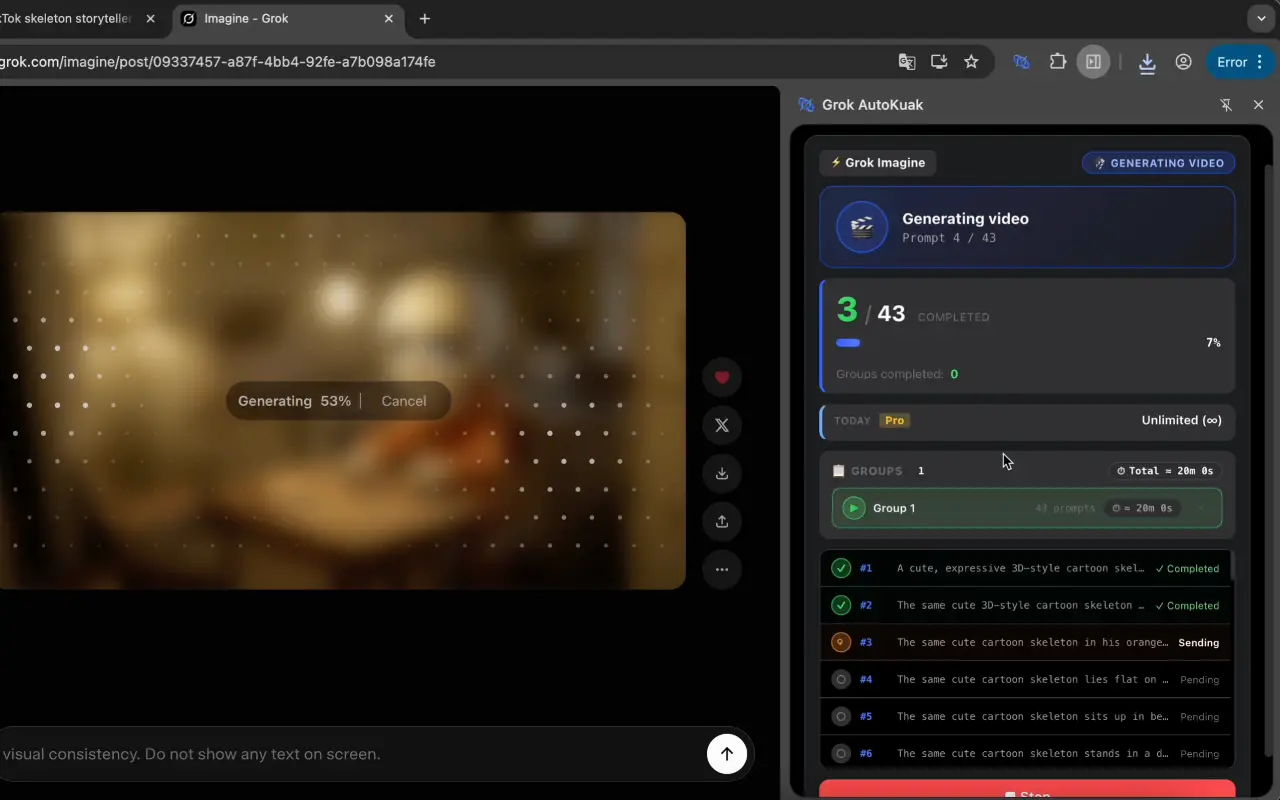
Grok, the xAI model integrated into X, has video and image generation capabilities pulling in creators who need to scale their output. The bottleneck, however, isn’t in the AI — it’s in the time you spend operating the UI manually. This guide walks through how to automate the full process so you can run large batches with zero human intervention.
Key takeaways
- Grok AutoKuak automates prompt sending to Grok from the browser — no code, no APIs.
- Free plan: 30 prompts per run, no card. Pro from $10.00/mo removes the cap.
- Setup: install → set delimiters → configure timers (min 5s) → hit Start.
- Includes auto-download of generated videos, clear progress logs, and Stop at any time.
Why automate Grok?
If you use Grok to generate visual content, the bottleneck isn’t the model. It’s you. Picture the scenario: you have 100 prompts ready. With no automation, the loop is open Grok, paste the prompt, wait 30–60 seconds for it to generate, download the result, go back to the doc, copy the next, repeat. A hundred prompts at two minutes of manual handling each is more than three hours of low-leverage work — time you’re not creating or planning.
With automation, the same batch runs alone while you do something else. The difference between 30 manual prompts and 300 automated ones is the difference between an artisanal workflow and a scalable one.
What you need to automate Grok
Three basic components:
- A structured prompt source.Can be a Google Doc, a web page, a Notion note, or any file with a consistent pattern separating one prompt from the next.
- An open Grok tab.The extension interacts with the Grok web UI on grok.com or x.com.
- An automation extension.In this case, AutoKuak Suite.
How to set up Grok AutoKuak step by step
Step 1 — Install AutoKuak Suite
Add Grok AutoKuak to Chrome from the Chrome Web Store. The Free plan includes 30 prompts per run with no cost and no mandatory signup. Install takes under 30 seconds.
Step 2 — Open your prompt source and Grok
You need two open tabs: one with your document or page containing the prompts, and one with Grok. Use the extension’s “Choose” button to pick each tab directly.
Step 3 — Set the delimiters
Delimiters are the text marking where each prompt starts and ends in your document. Three common patterns:
- If your prompts are separated by lines like
---, use---as the delimiter. - If each prompt starts with
PROMPT:and ends withEND, use those. - If you have well-separated paragraphs, you can use the first and last characters of each paragraph.
Step 4 — Pick the range
Define which prompt to start with and which to end on. You can process all of them or a specific subset (the first 30, prompts 50 through 100, etc.). Useful when you’re debugging or splitting a large batch into sessions.
Step 5 — Configure the timers
The “Time between messages” field defines how many seconds the extension waits before moving to the next prompt. Minimum is 5 seconds (available presets: 5, 10, 20, 30, 60). If Grok takes longer to generate a response, raise that value to avoid the extension moving on before the output is ready. For long videos, values between 30 and 60 seconds are usually conservatively safe.
Step 6 — Launch the run
Hit “Start”. AutoKuak Suite pulls the first fragment, pastes it into Grok, waits the configured time, and moves to the next. The logs panel shows in real time which prompt is running, elapsed time, and the status of each message.
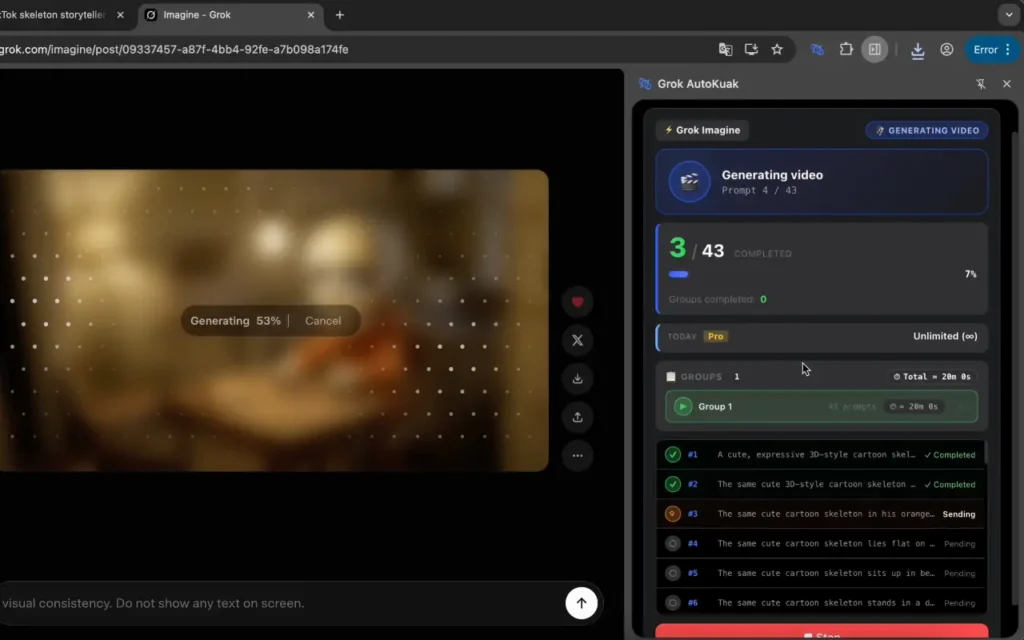
Want to try it on your next batch?Grok AutoKuak Free allows 30 prompts per run, no card. Install in under 30 seconds.
Auto-download the results
Downloads happen automatically during batch processing: every generated output saves to disk with the configured delay and optional renaming. You don’t need to click manually on each video. Files land in the folder you configure inside your Downloads, with optional auto-rename by prefix and sequential number.
Working modes: Text only, Image + text, and Sequence
Text only: the extension sends the prompt text alone, with no attached image. Use this when your prompts already describe everything Grok needs to generate.
Image + text: one fixed image attached to every prompt in the batch. Ideal for homogeneous content where all prompts share the same visual reference (keep a character consistent, keep a style).
Sequence: a different image per prompt, assigned in order (prompt 1 → image 1, prompt 2 → image 2, etc.). For workflows where every piece of content needs its own visual asset (numbered storyboards, chapter illustrations).
Advanced options that make the difference
- Visual Choose-tab feedback: the Choose button highlights the selected source tab so there’s no ambiguity about which tab will be read.
- Instant Stop: hit Stop at any time to cut the batch without losing outputs already downloaded.
- Chrome native side panel: the extension lives in Chrome’s official side panel (chrome://side-panel), always visible next to Grok without blocking the UI.
Free plan caps and when you need Pro
The Free plan handles up to 30 prompts per 24 hours, on a rolling window: what you sent comes back to you 24 hours later, batch by batch. If your typical batches are 20–25 prompts, Free covers one batch a day comfortably.
If you regularly handle batches over 30 items, the Pro plan removes the cap. Three options depending on your cadence: Pro Monthly ($10.00/mo), Pro Quarterly ($26.99), and Pro Annual ($89.88/yr, $7.49/mo equivalent). Card payment via Stripe Checkout and two-click cancellation. Compare plans and pick yours →
Conclusion: automating Grok is viable without code
You don’t need to know how to code or use complex automation tooling like Zapier or n8n. AutoKuak Suite handles the automation directly in the browser, on top of the real Grok UI, with no external APIs. If you use Grok to make content, automating prompt sending is the difference between shipping 1 video a week and shipping 5.
Want to go deeper? The dedicated pages cover each piece: the full module explainer for how to automate Grok with Grok AutoKuak, and the AutoKuak Suite overview with the rest of the product’s modules. You can also see a comparison of the best AI video generators if you’re still picking your tool.
Frequently asked questions
Do I need to know how to code to use Grok AutoKuak?
No. The whole setup is visual: install the extension, pick two tabs (Grok and your prompt document), set delimiters, hit Start. No APIs, no scripts, no terminal.
Does it work with long Grok videos?
Yes. Just raise the “Time between messages” timer to 30–60 seconds so the video has time to render before the next prompt fires. The field minimum is 5 seconds.
What happens if Grok changes its UI?
Grok AutoKuak uses stable DOM selectors and fallbacks. When Grok changes its UI enough to break the integration, we publish an update on the Chrome Web Store that applies automatically.
How much does Pro cost and what’s included?
Pro Monthly $10.00/mo, Pro Quarterly $26.99 ($9.00/mo equivalent), Pro Annual $89.88/yr ($7.49/mo). Removes the 30-per-run cap and adds the advanced TubeKRadar modules. Stripe payment, two-click cancellation. Compare plans.
Start today on the Free plan
AutoKuak Suite’s Free plan includes 30 prompts per run at no cost. Add the extension to Chrome and automate your first batch in under 10 minutes.